Build a Dinosaur Controls
Movement, Store menus, and the double-click delete rule every builder needs.
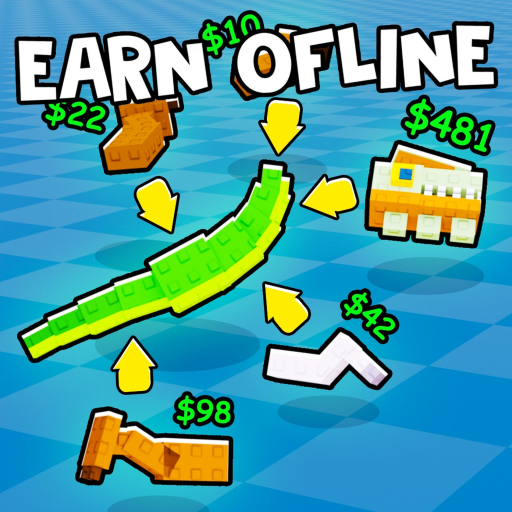
Clean inputs make Build a Dinosaur feel fair. This Roblox tycoon by Pixel Gold Games (place 123213321254818, released 2025-07-26, max 6 players) is built around buying parts, placing a custom dinosaur, earning Cash offline, defending a base, and Rebirth. None of that flows if you fight the UI. This page is the control and menu reference — especially the double-click to delete rule that saves broken pads.
For the wider onboarding path, use Getting Started. For every tutorial, open the Guides Hub.
Default Roblox movement
Build a Dinosaur uses standard Roblox character controls unless you rebound them in Roblox settings:
| Action | Typical input |
|---|---|
| Move | WASD or left stick |
| Jump | Space or bottom face button |
| Camera | Mouse / right stick |
| Interact / click UI | Left click or tap |
Walk the plot until shop stations, build pads, and base edges are muscle memory. In busy six-player servers, camera awareness matters as much as hotkeys — spot rivals before they spot an open gate. Base habits live on Build and Protect Base.
Building and the delete rule
Placing parts
Buy parts with Cash, then place them on your dinosaur pad. Aim for stable, readable builds so future upgrades fit. When two parts seem equal, compare value on the Tier List after you understand placement feel.
Double-click to delete
Double-click a placed part to delete it. That is the critical builder control. Use it when:
- A part clips through a wall and opens a defense hole.
- You bought the wrong tier and need Cash path clarity.
- Symmetry broke and the dinosaur looks unreadable.
- You are preparing a clean pad before a long offline session.
Delete is how you keep creativity from becoming clutter. Fear of deleting leads to the messy bases that leak progress. Practice on cheap parts during your first hour so the motion is automatic.
Rebuild discipline
After deletes, replace with intention. Do not leave the pad half-empty overnight — offline Cash is healthier on a coherent build. Farming structure is covered in Earn Cash Fast.
Store, Exclusive Store, and codes
Codes are not typed in a random chat command for this game’s standard flow. Use the Store UI:
- Open Store.
- Open Exclusive Store.
- Scroll to the bottom.
- Enter codes listed on our Codes page.
Check that page after patches noted on Updates. Claiming codes is a control-path skill as much as a reward skill — if you cannot find Exclusive Store, you cannot claim free value.
Game passes in the Store
When you browse paid options, you will commonly see:
- x2 Storage — 299 Robux
- x2 Cash — 299 Robux
- Premium — about 1299 Robux
These are optional. Buy them from the Store when you already like the loop. They do not change the double-click delete rule or the need for a closed base.
Menus that matter for progression
Shop / parts flow — where Cash becomes dinosaur pieces. Store / Exclusive Store — passes and code entry (bottom). Rebirth prompt — read confirmations before you prestige; timing guide at How to Rebirth. Base building interactions — place and upgrade defenses so offline income survives.
If a menu label shifts after an update, verify against Updates and keep using the same logical path: parts for the pad, Exclusive Store for codes, Rebirth only on purpose.
Touch and controller tips
On mobile, double-tap carefully — accidental deletes hurt, but hesitant deletes create clutter. Zoom the camera so the part you intend is clearly under your tap. On controller, ensure the cursor or selection highlight is on the correct part before the double-press equivalent of click. When unsure, walk closer; distance mis-clicks are the usual villain.
Practice drills (five minutes)
- Buy a cheap part, place it, double-click delete it, replace it.
- Open Store → Exclusive Store → scroll bottom (even if you have no new code).
- Walk a full lap of your perimeter and note any part clipping through walls.
- Collect Cash and buy one intentional upgrade.
- Open the wiki Tools tab if you use planners; keep Scripts secondary and ToS-safe.
How controls connect to the rest of the wiki
- Getting Started — first-hour order of operations
- Earn Cash Fast — spend and offline habits
- How to Rebirth — when reset menus are worth it
- Build and Protect Base — why deletes fix defense leaks
- Codes — what to type in Exclusive Store
- Tier List — what to buy after you can place cleanly
- Updates — control or UI changes after patches
- Links Hub — official Roblox link and community destinations
- Guides Hub — full guide list
Troubleshooting
Delete not working: Ensure you double-click the part itself, not empty ground or a UI panel. Move closer and try again.
Cannot find code entry: Store → Exclusive Store → scroll to the bottom. Do not rely on chat.
Camera fights building: Reset Roblox camera sensitivity in settings; use higher angles to see clip-throughs before you wall.
Accidental purchases: Slow down in the shop; Cash is the long game. Passes are never mandatory for learning controls.
Master movement, shop paths, Exclusive Store, and double-click delete, and every other Build a Dinosaur guide becomes easier to execute. The players with the cleanest dinosaurs are usually the ones who delete without fear and claim codes without hunting the wrong menu.
Frequently Asked Questions
Quick answers for Build a Dinosaur on Roblox.
How do you delete parts in Build a Dinosaur?
Double-click a placed part to delete it. Practice on cheap parts so you can fix placement and wall-clipping mistakes quickly.
Where do I redeem codes in the UI?
Open Store, go to Exclusive Store, and scroll to the bottom. Active codes are listed on the Codes hub.
Does Build a Dinosaur use special movement keys?
It uses standard Roblox movement (WASD or stick, jump, camera). The builder-specific must-know input is double-click to delete parts.
Which passes appear in the Store?
Common options include x2 Storage (299 Robux), x2 Cash (299 Robux), and Premium (about 1299 Robux). All are optional.
Why should I delete parts before going offline?
Misplaced parts can open base gaps. Clean deletes help you reseal defenses so offline Cash is safer in six-player servers.